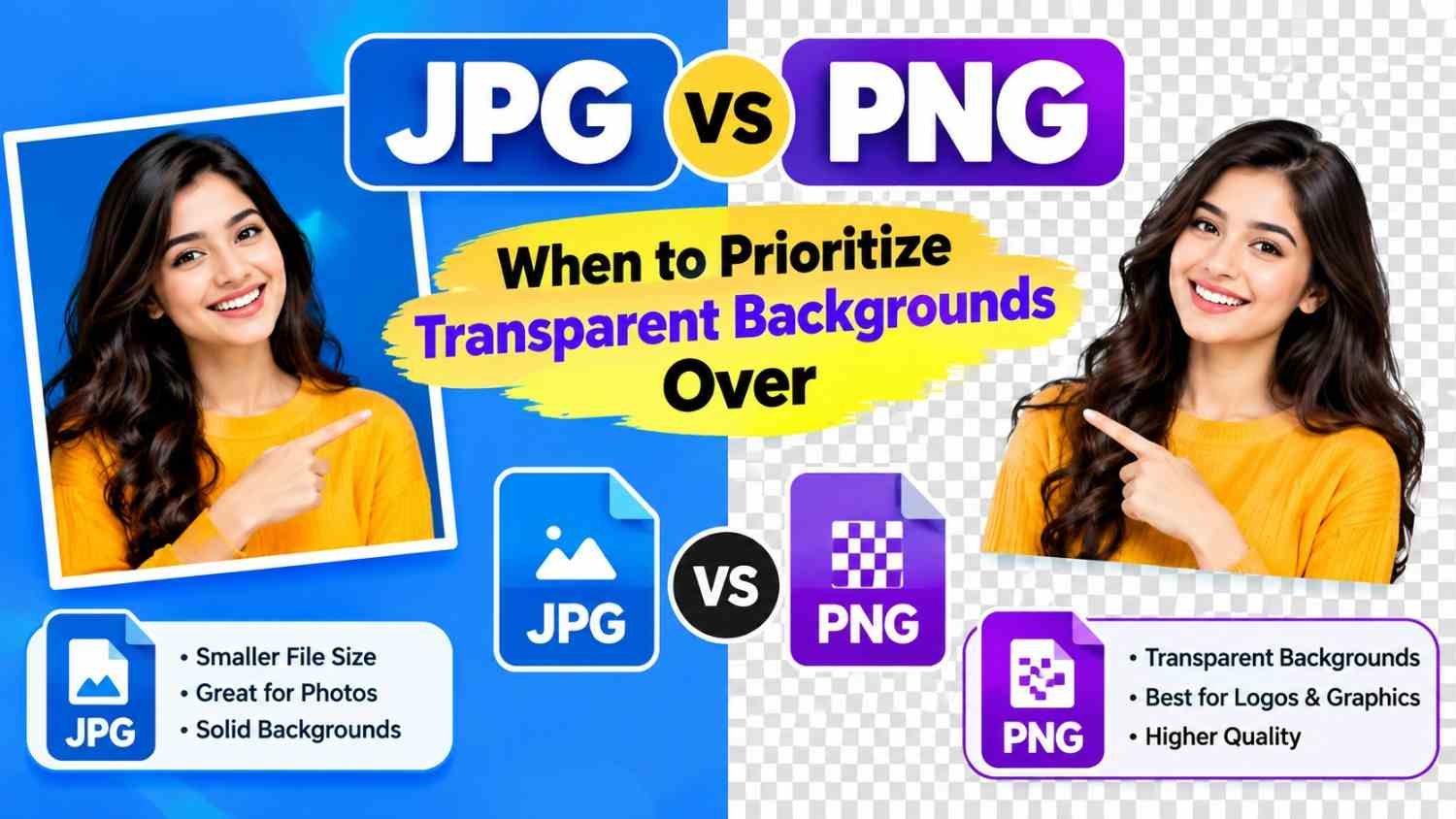
Whenever you save a photo, export a graphic design project, or download an asset for your website, you inevitably face the most common digital question: should you save it as a JPG or as a PNG?
For decades, these two formats have dominated the internet. On the surface, an image displayed on a phone or computer screen might look nearly identical regardless of the file extension. However, underneath the hood, JPG and PNG operate on completely different compression technologies. Choosing the wrong format can quietly ruin your user experience—either by dramatically slowing down your page loading speed due to heavy file sizes, or by creating ugly, blurry borders around your logos and product icons.
Understanding the strengths, weaknesses, and mechanical differences of both formats will help you optimize your storage, improve your website's search engine performance, and ensure your visual assets always look sharp.
What Is a JPG (Joint Photographic Experts Group)?
Developed in the early 1990s, JPEG (commonly abbreviated as JPG) was engineered specifically to solve a massive problem: high-resolution photographic files were too large to store and share across early internet connections.
JPG uses lossy compression. When an image is saved as a JPG, the compression algorithm analyzes the picture and permanently deletes visual data that the human eye is least likely to perceive. For example, subtle shifts in color across a wide blue sky or minor shadow variations in a forest background are simplified and grouped into blocks of similar shades.
Because it discards redundant data, JPG achieves exceptionally small file sizes without a noticeable drop in perceived visual quality when viewed from a reasonable distance. However, every single time you open a JPG, make an edit, and save it again, the algorithm compresses the file further, gradually degrading the sharpness—a phenomenon known as digital generation loss.
What Is a PNG (Portable Network Graphics)?
PNG was created in the mid-1990s as an open-source replacement for the older GIF format, which was restricted by software patents at the time. Unlike JPG, PNG was built around lossless compression using a method known as the Deflate algorithm.
When an image is saved as a PNG, not a single pixel or color value is discarded. The compression engine looks for patterns in the pixel grid to reduce the file size, but when the image is unpacked and displayed on a screen, every pixel is rendered in its exact, original state.
Most importantly, PNG introduced support for an alpha channel. In digital graphics, an alpha channel controls transparency. While formats like GIF only offered binary transparency (a pixel was either completely solid or completely invisible), PNG allows for 256 levels of opacity. This means graphics can have smooth drop shadows, soft edges, and translucent glass effects that blend seamlessly over any background color.
Key Technical Differences: Side-by-Side Breakdown
To make the best choice for your project, look at how both formats compare across core technical factors:
| Feature | JPG / JPEG | PNG |
| Compression Style | Lossy (discards visual data permanently) | Lossless (preserves 100% of pixel detail) |
| Alpha Transparency | Not supported (transparent areas turn white) | Fully supported (supports smooth translucent gradients) |
| Average File Size | Very small and light | Moderate to extremely heavy |
| Ideal Subject Matter | Real-world photography, landscapes, portraits | Logos, user interface icons, screenshots, line drawings |
| Color Depth | 24-bit RGB (up to 16 million colors) | Up to 48-bit truecolor (plus alpha transparency) |
| Re-saving Artifacts | Degrades quality with each re-save | Retains original clarity no matter how many times saved |
When You Should Always Use PNG
There are several scenarios where using a JPG is a mistake and PNG is the only correct technical choice:
1. Logos and Brand Assets
A company logo rarely sits on a plain white surface forever. You may need to place your logo across a dark website navigation bar, a colored email banner, or over an animated background video. A PNG file allows your logo to sit cleanly on any surface without an awkward rectangular white box surrounding it.
2. Screenshots Containing Small Text
If you take a screenshot of code snippets, spreadsheets, application dashboards, or written documents, save it as a PNG. Because JPG uses lossy compression, it creates fuzzy "compression artifacts" around sharp, high-contrast borders like text letters. PNG keeps typography crisp and easily readable even when zoomed in.
3. Graphics with Sharp Geometric Edges
Digital vector illustrations, charts, graphs, and UI buttons feature distinct boundaries between solid color blocks. PNG’s lossless encoding maintains clean separation along these borders, whereas JPG often blurs adjacent color boundaries together.
When You Should Always Use JPG
Despite the superior visual accuracy of PNG, using it everywhere will damage your workflow and web performance. Here is where JPG remains essential:
1. Blog Headers and Photography Galleries
A high-resolution photograph taken on a modern smartphone or DSLR camera contains millions of natural color gradients. If you save that photograph as a PNG, the file size can easily exceed 8 to 15 megabytes. Saving the exact same photo as a JPG at 80% to 85% quality can shrink the file to just 400 to 600 kilobytes without any visible loss of quality to regular readers.
2. Website Performance and Mobile Page Speed
Search engines like Google use page loading speed as a major factor when ranking websites. If a blog post contains five uncompressed PNG photos totaling 40 megabytes, mobile visitors on slower connections will experience long loading delays and quickly bounce off the page. Using optimized JPG files keeps your pages nimble and responsive.
3. Email Newsletters and Digital Documents
Email clients have strict attachment limits, and heavy image files frequently trigger spam filters or fail to display in inbox previews. Compressing newsletter graphics into JPG ensures quick delivery and instant rendering.
How to Convert Between JPG and PNG Without Destroying Quality
Often, you will find yourself stuck with the wrong format. For instance, a client might send you a logo embedded inside a solid white JPG, or your camera may output heavy PNG screenshots that need to be published to a web server quickly.
Instead of installing resource-heavy photo editing software, you can convert your files right inside your browser:
-
Converting PNG to JPG: If you have massive PNG photos eating up disk space or slowing down your website, you can use our free [Images to JPEG Converter] to instantly strip out unnecessary bulk and generate a clean, lightweight image ready for fast web delivery.
-
Converting JPG to PNG: If you need to prepare an existing asset for graphical editing, layer manipulation, or higher color stability, you can run the file through our [Images to PNG Converter] to produce a lossless container that will not lose further quality during subsequent edits.
Best Practices for Web Designers and Publishers
To strike the ultimate balance between crisp visual aesthetics and blazing-fast site performance, follow this simple production rule:
-
Keep raw masters in lossless formats: When designing graphics in tools like Photoshop, Illustrator, or Figma, always keep your master project files intact.
-
Export for the destination: If the final asset is a photograph, export to JPG with a quality setting between 75% and 85%. If the asset is a transparent icon or UI element, export to PNG-24.
-
Verify total payload: Keep overall page weights under 1.5 to 2 megabytes across all assets combined. If an image exceeds 500 KB, run it through an optimizer before uploading it to your CMS.
Frequently Asked Questions
Why did my transparent PNG turn black when I uploaded it?
Certain older photo viewers, social media upload scripts, or custom web forms do not recognize transparent alpha channels. When an unsupported system encounters transparent space, it often replaces the empty channel with a solid black or dark grey color.
Does converting a JPG to a PNG restore lost photo quality?
No. When an image is compressed into a JPG, the discarded data is permanently deleted. Converting that file into a PNG simply saves the already-compressed pixels into a larger container. It prevents future quality loss when editing, but it cannot magically recreate original lost details.
Is PNG better than JPG for high-resolution printing?
For photographic prints, high-quality JPGs saved at 300 DPI (dots per inch) are the global industry standard and perfectly sufficient. For vector graphics, posters with fine typography, or art prints with crisp solid shapes, PNG or dedicated print formats like TIFF and PDF are preferable.